Before you start
Why convert?
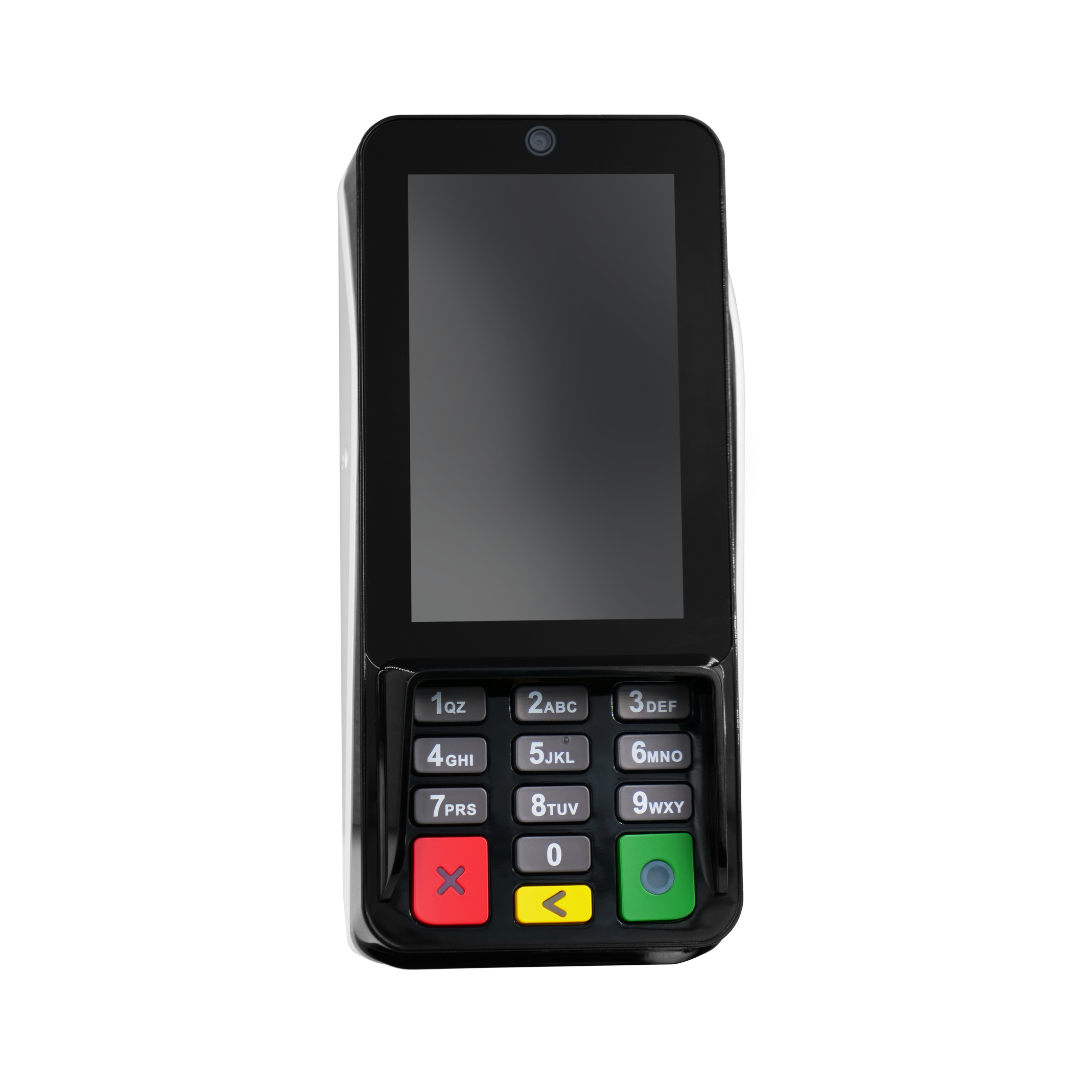
In a Duo Base, the A80 controls the A35. With the REST API, your own software or POS system controls the A35 directly over the network. For this, the A35 must be converted into a standalone CCV Nexus Pad A35 ITS with its own network and power connection.
- Your existing A35 stays in use; only the cables and the power supply are replaced.
- The A80 counter terminal is no longer used in this set-up.
- You need a free network port on your router, modem or switch.
Important: do not disconnect anything during a payment or software update, and do not change any network or terminal settings without consulting Pin Vandaag.
Parts
What do you need?
| Part | Explanation | Order |
|---|---|---|
| PAX A35 ITS cable | Dongle with cable set that attaches to the back of the A35. You connect the network and power supply to it. | View in the shop → |
| PAX A35 ITS power supply | New USB-C power cable. The power supply of the old A80-A35 Duo Base does not fit the A35 ITS. | View in the shop → |
| Wall adapter | USB adapter for the wall socket, for the A35 power cable. | View in the shop → |
| Network cable | Ethernet cable from the dongle to your router, modem or switch. | Usually already available |
Installation
Step-by-step plan
- Disconnect the old equipment. Unplug the power adapter from the wall socket. Then fully disconnect the A80 and the existing A80-A35 cable set (coiled cord).
- Connect the ITS cable. Connect the PAX A35 ITS cable to the back of the A35.
- Connect the network. Connect the network cable to the connection block (dongle) of the ITS cable and the other end to your router, modem or switch. Connect the network cable to the network, not to the POS system.
- Connect the power. Plug the USB-C power cable into the dongle. Connect the USB-A end to the wall adapter and plug it into the wall socket.
- Start up. The A35 starts up automatically. Check that the terminal has received an IP address (usually automatically via DHCP).
- Have the integration activated. Contact Pin Vandaag to link the A35 to the REST API. You will then receive the TMS number and the API key, which you can also find in PinPortal.
Please note: never use a USB port of the POS system or computer as a power supply. It delivers too little power, which may cause the A35 to shut down during a payment.
Check
Testing
- Start a test payment of € 0.01 via the REST API.
- Check that the amount appears on the A35 and complete the payment with a debit card.
- Check that your software receives the outcome of the payment.
The technical documentation for developers can be found on the REST API page.
Initial check
Troubleshooting
The A35 does not switch on
Check that the USB-C cable is properly inserted in the dongle and the wall adapter is in a working wall socket. Do not use a USB port of the POS system.
No connection or no IP address
Check that the network cable is in the dongle and connected to the router or switch, not to the POS system. If necessary, try a different network port.
No amount appears on the A35
Check that the integration has been activated by Pin Vandaag and that the TMS number and API key belong together. Do not start several payments in a row.